Why the Logitech MX Master 3 Is Popular for Remote Work
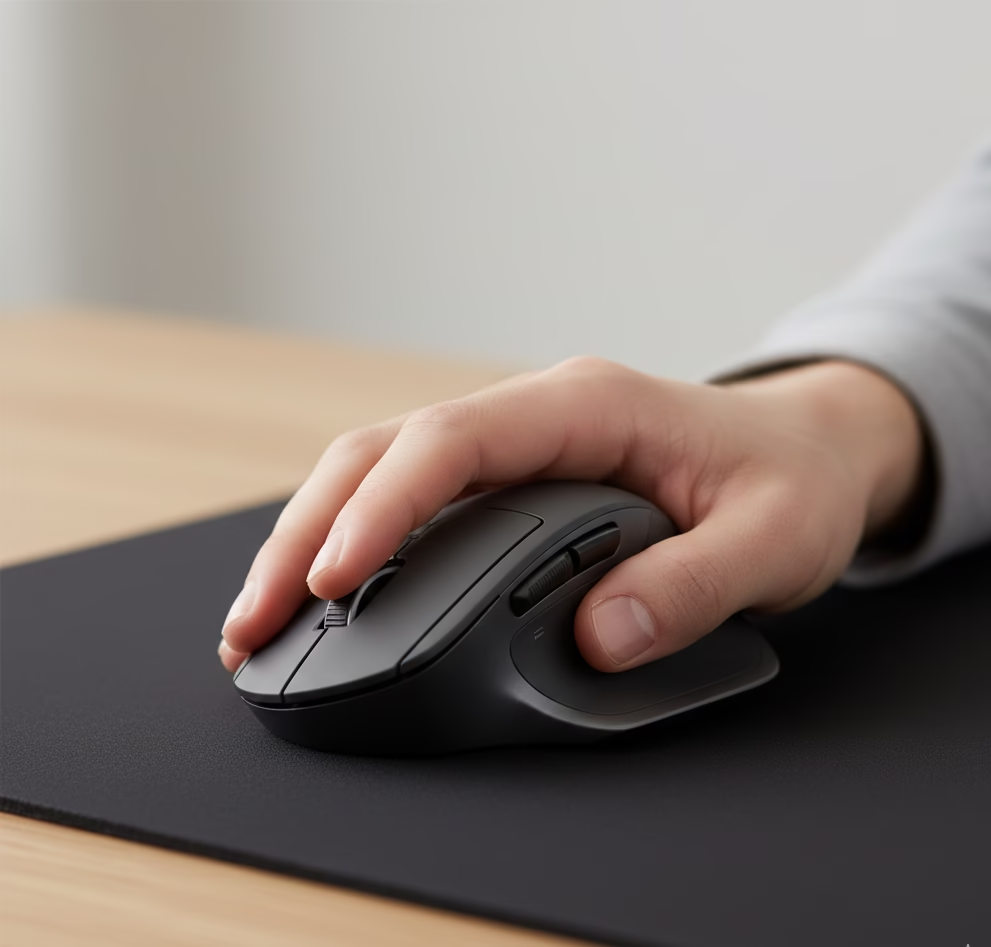
Table of Contents
Introduction
Remote work means spending long hours at your desk—answering emails, joining video calls, managing documents, and switching between multiple apps or devices. Using the wrong mouse can quickly lead to wrist pain, fatigue, and lower productivity.
That’s where the Logitech MX Master 3 stands out. It’s designed specifically for professionals who work long hours and want better comfort, faster workflows, and seamless multitasking.
In this Logitech MX Master 3 review, I’ll explain how it performs for remote work, its pros and cons, and whether it’s worth the price for a home office setup.
Setting up a productive workspace goes beyond just choosing a mouse. If you’re building or upgrading your setup, check out The Ultimate Guide to Home Office Accessories for Remote Workers for a complete breakdown of essentials.
Quick Verdict: Is the Logitech MX Master 3 Worth It?
If you work remotely and spend several hours a day on your computer, the Logitech MX Master 3 is one of the best productivity mice available. It’s comfortable, highly customizable, and built to improve workflow efficiency.
- Best for: Remote workers, freelancers, programmers, designers
- Not ideal for: Gamers or users with very small hands
- Overall verdict: Premium price, but excellent long-term value for productivity

Key Features of the Logitech MX Master 3
The MX Master 3 isn’t just a regular mouse—it’s packed with features designed for professional use.
Ergonomic Design for Long Work Hours
The sculpted shape supports your palm and reduces wrist strain, making it ideal for long remote work sessions.
MagSpeed Electromagnetic Scroll Wheel
The scroll wheel automatically switches between:
- Precision scrolling (for spreadsheets)
- Hyper-fast scrolling (for long documents)
Multi-Device & Multi-OS Support
You can connect up to three devices and switch between them instantly—perfect if you use a laptop and desktop.
Customizable Buttons
With Logitech’s software, you can assign shortcuts for:
- Copy & paste
- Window switching
- Browser navigation
Battery Life & USB-C Charging
A full charge lasts up to 70 days, and a 1-minute charge gives about 3 hours of use.
Real-World Performance for Remote Work
In daily remote work tasks, the Logitech MX Master 3 truly shines.
For tasks like:
- Writing emails and documents
- Managing spreadsheets
- Video calls and multitasking
- Switching between apps and monitors
…the mouse feels smooth, accurate, and responsive. The quiet clicks are especially helpful in shared or quiet workspaces.
If your remote job involves constant scrolling, editing, or multitasking, this mouse can noticeably improve your workflow.
Comfort & Ergonomics: Ideal for Long Desk Sessions
Comfort is where the MX Master 3 excels.
What Works Well
- Full palm support
- Reduced wrist tension
- Natural hand positioning
Things to Consider
- Best for medium to large hands
- Not suitable for left-handed users
- Heavier than travel mice
If wrist comfort is a priority, this mouse easily outperforms basic or budget options.
🧱 Internal link suggestion:
Link again to your pillar article when mentioning ergonomics:
Anchor text: “ergonomic home office setup”
A comfortable mouse is only one part of an ergonomic workspace. For a full ergonomic setup, including desks, chairs, keyboards, and accessories, see my complete home office accessories check list guide.
Software & Customization (Logi Options+)
The Logitech MX Master 3 works with Logi Options+, which unlocks its full potential.
With the software, you can:
- Customize buttons per app (Chrome, Excel, Photoshop, etc.)
- Create productivity shortcuts
- Adjust scroll speed and sensitivity
The software works well on Windows and macOS, though Linux support is limited.
Pros and Cons of the Logitech MX Master 3
Pros
- Excellent ergonomics for remote work
- Premium build quality
- Powerful customization options
- Long battery life
Cons
- Expensive compared to basic mice
- Not designed for gaming
- Slightly bulky for travel
Being honest about both sides builds trust—and helps readers make informed decisions.

Logitech MX Master 3 vs Alternatives
MX Master 3 vs MX Anywhere 3
- MX Master 3: Better ergonomics and productivity features
- MX Anywhere 3: Smaller, more portable
MX Master 3 vs Budget Office Mice
Cheaper mice may work short-term, but they lack:
- Ergonomic support
- Customization
- Workflow optimization
For serious remote work, the MX Master 3 is in a different league.
If you’re still deciding which accessories to invest in for remote work, I’ve put together a detailed resource covering everything you need in one place: The Ultimate Guide to Home Office Accessories for Remote Workers
Is the Logitech MX Master 3 Worth It for Remote Work?
If you:
- Work remotely full-time
- Spend 6–8 hours daily at your desk
- Want to reduce wrist strain
- Value productivity tools
Then yes—the Logitech MX Master 3 is absolutely worth it.
If you only use your computer occasionally, a cheaper mouse may be enough. But for professionals, this mouse is a smart long-term investment.
check for the best price today on amazon
Frequently Asked Questions (FAQ)
Is the Logitech MX Master 3 good for programming?
Yes. Programmers benefit greatly from the scroll wheel, button customization, and ergonomic design.
Is it good for small hands?
Not ideal. Users with small hands may find it too large.
Can I use it with multiple computers?
Yes, you can switch between up to three devices easily.
Is the Logitech MX Master 3 good for a home office?
Absolutely. It’s one of the best mice available for home office and remote work setups.