



Table of Contents
Understanding the Basics: Single vs. Dual Monitors
Remote work has transformed how professionals approach productivity, and one of the most impactful upgrades you can make to your home office is optimizing your monitor setup. Whether you work in data analysis, content creation, customer support, or general office tasks, the right monitor configuration can significantly improve focus, efficiency, and comfort.
This guide explores single vs dual monitor setups, how to choose the best option for your workflow, practical setup tips, and future monitor trends—while remaining compliant with Google AdSense and Amazon Associates policies.
Disclosure: This article contains affiliate links. If you purchase through these links, we may earn a small commission at no additional cost to you.
For a complete practical guide foe home office setup for remote work, check here!
Understanding Monitor Setups for Remote Work
Choosing the right monitor setup is not about buying the most expensive screen—it’s about aligning your tools with how you work.
Single Monitor Setup Explained
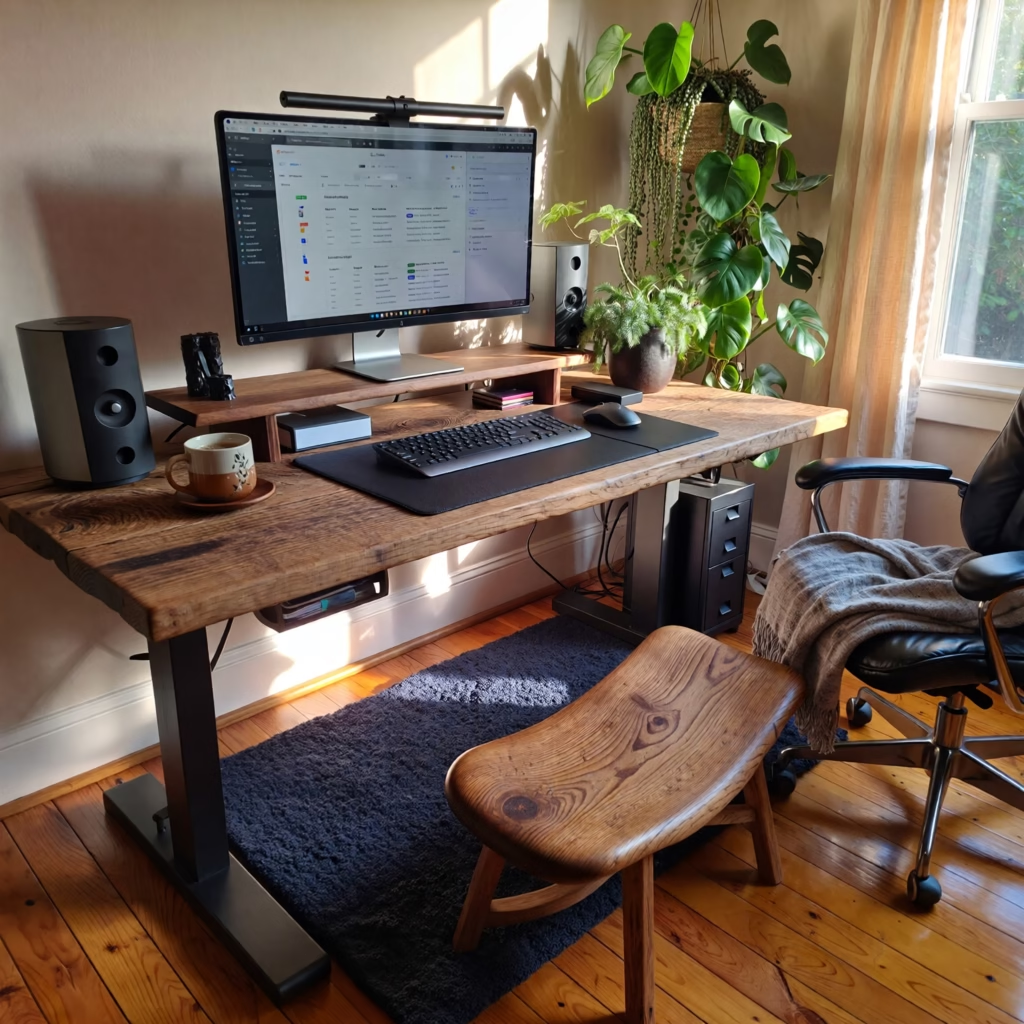
A single monitor setup consists of one external display or a laptop screen used independently. This option is common among remote workers with limited desk space or those who focus on one task at a time.
Best suited for:
- Email management
- Writing and research
- Video calls
- Administrative tasks
Pros and Cons of a Single Monitor Setup
| Pros | Cons |
|---|---|
| Affordable and space-saving | Frequent app switching |
| Simple cable management | Limited multitasking |
| Easy to set up | Reduced screen real estate |
Estimated Cost (US/UK):
💲 $120–$250 (budget models often under $200)
Popular Amazon Options:
👉 View single monitors on Amazon
Dual Monitor Setup Explained

A dual monitor setup uses two displays simultaneously, allowing users to spread tasks across screens. This configuration is increasingly popular among professionals who multitask or manage complex workflows.
Best suited for:
- Programming and development
- Data analysis
- Graphic design
- Virtual meetings + note-taking
Pros and Cons of a Dual Monitor Setup
| Pros | Cons |
|---|---|
| Increased productivity | Requires more desk space |
| Reduced window switching | Higher upfront cost |
| Better task separation | Slight learning curve |
Estimated Cost (US/UK):
💲 $250–$600 (depending on size and resolution)
Popular Amazon Options:
👉 View dual monitor bundles on Amazon
Single vs Dual Monitors: Quick Comparison
| Feature | Single Monitor | Dual Monitor |
|---|---|---|
| Productivity | Moderate | High |
| Desk Space Needed | Low | Medium–High |
| Cost | Lower | Higher |
| Multitasking | Limited | Excellent |
| Ideal for Beginners | Yes | Yes (with setup) |
How to Choose the Right Monitor Setup for Your Workflow
Evaluate Your Daily Tasks
Ask yourself:
- Do I use multiple applications at the same time?
- Do I reference documents while working on another screen?
- Do I switch windows frequently?
If you answered “yes” to most of these, a dual monitor setup may be the better choice.
Consider Your Work Style
- Deep focus workers → Single monitor with good window management
- Multitaskers & analysts → Dual monitors
- Creative professionals → Dual or ultra-wide monitor
Desk Space & Ergonomics
Measure your desk before purchasing monitors. Even the best screen won’t help productivity if it causes neck strain or clutter.
Optimizing Your Monitor Setup for Productivity
Proper Monitor Positioning
- Top of the screen should be at eye level
- Distance: approximately arm’s length
- Dual monitors should be aligned evenly, with the primary screen centered
Recommended Accessories
| Accessory | Benefit | Amazon CTA |
|---|---|---|
| Monitor Arm | Saves desk space | 🔗 View on Amazon |
| Adjustable Stand | Better posture | 🔗 Check availability |
| Blue Light Filter | Reduced eye strain | 🔗 Browse options |
Software Tools to Maximize Screens
- Virtual desktops (Windows & macOS)
- Window snapping tools
- Task management dashboards
These tools improve workflow without additional hardware costs.
Future Monitor Trends for Remote Workers
Ultra-Wide Monitors
Ultra-wide displays replace dual monitors by offering a seamless, uninterrupted workspace—ideal for timelines, spreadsheets, and creative layouts.
Price Range:
💲 $300–$700
👉 View ultra-wide monitors on Amazon
Higher Resolution Displays (4K & Beyond)
4K monitors provide sharper text and better visual clarity, especially beneficial for designers, editors, and developers.
Key benefits:
- Enhanced detail
- Reduced eye fatigue
- Better multitasking visibility
USB-C & Modern Connectivity
New monitors support:
- USB-C single-cable charging
- HDMI 2.1
- Built-in docking features
These advancements reduce cable clutter and simplify workstations.
Frequently Asked Questions (FAQ)
Is a dual monitor setup worth it for remote work?
Yes, for most professionals, dual monitors improve productivity by reducing app switching and enabling better task organization.
Can a single monitor still be productive?
Absolutely. With proper window management and ergonomics, a single monitor setup works well for focused tasks and smaller spaces.
What monitor size is best for home offices?
- Single monitor: 24–27 inches
- Dual monitor: Two 24-inch displays or one ultra-wide
Are monitor arms necessary?
They are not required but highly recommended for ergonomic positioning and desk organization.
Final Thoughts
Optimizing your monitor setup is one of the most impactful upgrades you can make as a remote worker. Whether you choose a single monitor for simplicity or a dual monitor setup for maximum productivity, the key is aligning your workspace with your workflow.
By making informed choices and using ergonomic best practices, you can create a remote work environment that supports focus, comfort, and long-term efficiency.